Summary: The Xbox Windows 10 app is an application offered on all Windows 10 compatible devices – even if it is phone, tablets, PC or laptops. This is just amazing and enables the Xbox users to bring the entire gaming world under one roof. So, here check out the complete information about the Xbox app features and how to use it.
Windows operating system is the most popular platform for PC game and the Microsoft’s Xbox consoles are the well-accepted video game consoles among the others.
And Microsoft Windows 10 is the first operating system with single and combined Windows core that enables the Xbox app to run on every Windows device including phone, tablet, PC, Xbox console.
The Xbox universal app facilitates the Xbox users to bring their entire gaming world under the one roof. With this app user can flawlessly access their Xbox games, interact with Xbox friends, connect with Xbox One console and enjoy every Xbox service through windows 10. This app is inborn with various prominent features. So know about its great features and how to make use of them too.
Helpful Article: [VIDEO] Windows 10: Best 10 New Features To Try First
Windows 10 Xbox app Features
1. Xbox app in Windows 10
When the user launches the Xbox app in Windows 10, they will be greeted with the Xbox logo with the game characters. And once it connected to the internet and is all set, just click on “Let’s play”.
Very firstly windows accounts will be auto signed; the user can change their account by clicking on sign in as different user.
You May Also Read:
- [UPDATED] How to Fix Xbox App Won’t Open in Windows 10
- 19 Cool New Features in Windows 10 Anniversary Update
2. Messages
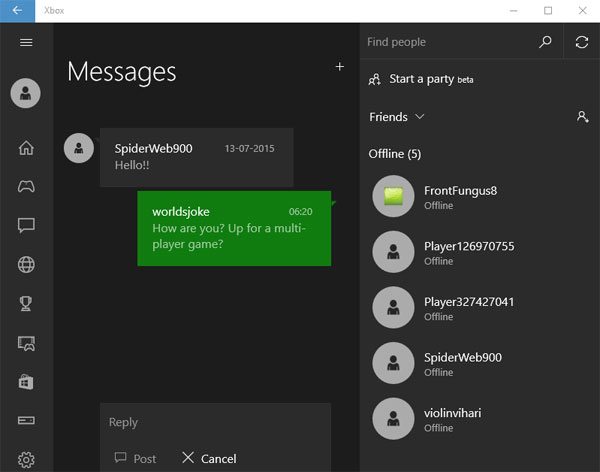
The base version of the Xbox app in Windows 10 helps the user to correspond with the existing Xbox friends through messages. The user needs to just click on the “Messages” icon in the app and select the Xbox friend whom you want to deliver a message or start a conversation. If users are using Xbox on the console or Windows Phone all the message history will be visible here.
3. My Games
This is another prominent feature in the “My Games” section of Xbox app; the entire games which user owned from Windows store will be shown. The user can immediately begin the existing games present in “My Games” just by clicking the “Play” button on the name of the game.
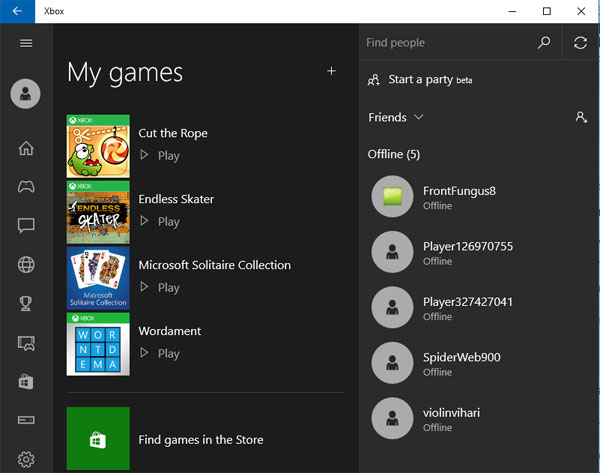
When the user launches the Xbox game in Windows 10, they can notice that the game can be played within the same Windows, but not like Windows 8 or 8.1, the game cannot be open in full-screen mode by default though this is bit change in Microsoft’s Windows 10.
But if you have not installed any Xbox games in the past, then you can use “Find games in the Store” option that launch the Windows 10 store app, here you can search and find games as per your choice. And as you have installed games from the store it would be listed in “My Games” section of the app.
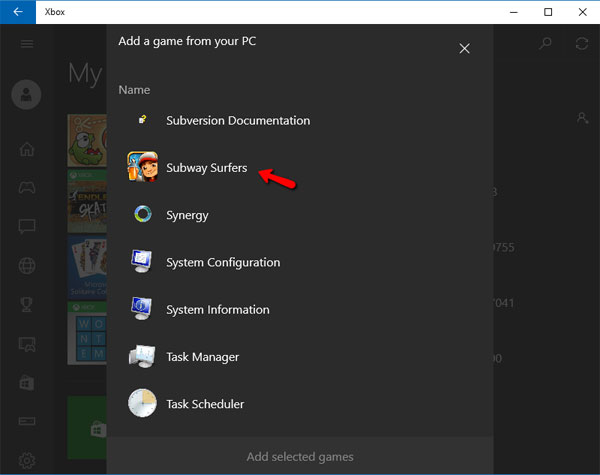
The user can also add an existing PC game or non-store application in “My Games” just by clicking on the “+” button and can import existing PC game to the game list in Xbox app in Windows 10.
4. Achievements
Here in the Xbox app lists the score earned in the game, achievements and the progress of the games played. With the help of this user can track the progress of Xbox games in significant with Xbox friends performance. The user can also sort the game list in the order of “Most Recent”, “Xbox One” and “Others”.

5. Game DVR
This helps the users to record the game while playing. When you are in a game, just by using the shortcut key “Windows +G” user can take the snapshot of the game. In the “Game DVR” section of Xbox, app user can see the recent game and the related games clips and screenshots. This is a very pleasant way to make a foolproof of the game’s level cracked.
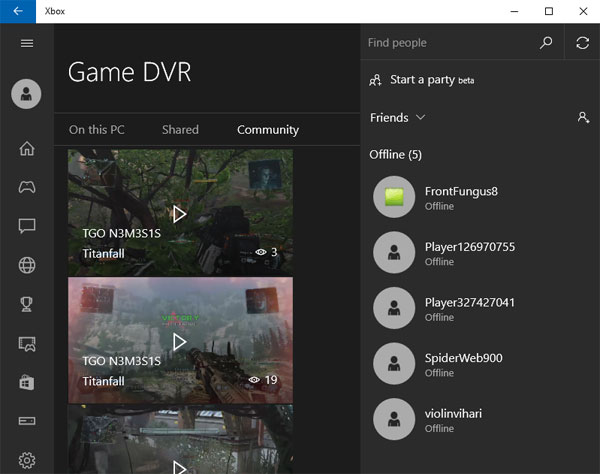
Note: For taking game clips there is a requirement for a specific hardware, and if you are not able to fulfill the hardware requirements, still user can capture the game moments just by using “Windows+Alt+P” to take the snapshot while playing the game.
6. Capture Screenshot or Record Screen
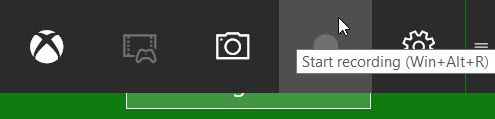
This app is also having the screen recording feature. This helps you to record the screen of the active windows. For making use of it just start the Xbox app in Windows 10 and click Win+G for opening the Game bar and select Screenshot or Start Recording.
And now you can capture the screenshots and record the screen in Xbox app in Windows 10. This is an amazing feature of Windows 10.
7. Connecting Xbox app to Xbox One on Windows 10
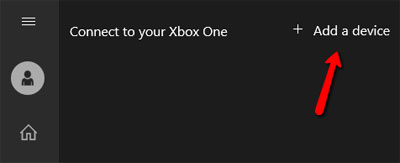
By entering “Connect” section of Xbox, app user can connect any Xbox One device to the application. If the auto-discovering of Xbox one console fails, the user can manually add it by indicating the IP address.
8. Modify your Xbox Profile
The user can change or update their Xbox profile just by clicking on “Customize” option under the profile tab.

The user can update their Xbox profile with the variety of options by switching between “gamerpic” or “Xbox avatar”. This is an amazing feature of the Xbox app in Windows 10 and can be easily used as well.

9. Xbox Friends
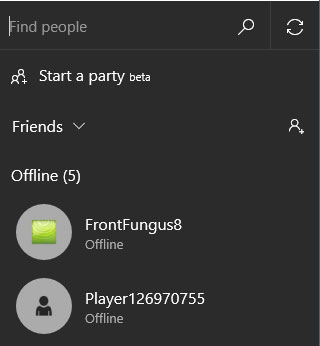
The user can also search for any screen name and add them as friends in the Windows 10 Xbox app. The user can also view their profile, games that they had played, earned achievements, the message then and can invite them to a party.
Conclusion:
So, this all about the Xbox app Windows 10 features and ways to use it
Windows 10 is the latest operating system and Microsoft has provided various amazing features in it. And among them, Xbox app is the amazing for the gamers in Windows.
Hope after reading the article you are able to make use of the amazing Xbox app features and use it.
Good Luck!!!