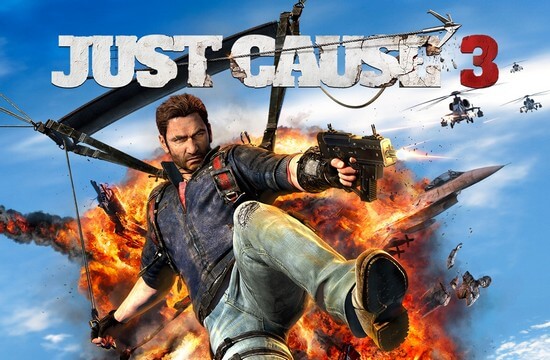
Just Cause 3 is the recent game released on Steam and the game has a very low response as the game is full of bugs, error, and a complete mess. For the reasons, this got bad reviews, complaints about the game. This game is full of glitches and not being properly optimized.
There are various errors in the Just Cause 3 games and players are complaining about the crashes, Game Not launching and even Performance Issue such as FPS Drops and Shuttering problem. So, in this article know how to fix all these irritating errors.
The user needs to check the minimum system requirements and this can also cause crashes error and FPS issues:
MINIMUM:
-
- OS: Vista SP2 / Windows 7.1 SP1 / Windows 8.1 (64-bit Operating System Required)
- Processor: Intel Core i5-2500k, 3.3GHz / AMD Phenom II X6 1075T 3GHz
- Memory: 6 GB RAM
- Graphics: NVIDIA GeForce GTX 670 (2GB) / AMD Radeon HD 7870 (2GB)
- Storage: 54 GB available space
RECOMMENDED:
-
- OS: Vista SP2 / Windows 7.1 SP1 / Windows 8.1 (64-bit Operating System Required)
- Processor: Intel Core i7-3770, 3.4 GHz / AMD FX-8350, 4.0 GHz
- Memory: 8 GB RAM
- Graphics: NVIDIA GeForce GTX 780 (3GB) / AMD R9 290 (4GB)
- Storage: 54 GB available space
How to Fix Various Just Cause 3 Game Errors
1) Just Cause 3 Game Crashes – This is the common problem faced by the users while playing just cause 3 games. It starts crashing when they try to launch the game, some users even face the crashing problem when they try to change resolution too.
Solution: To fix this check the drivers and update them. It might happen the outdated driver conflicts with the user’s system and the game start crashing.
You may also read:
- 7 Tricks to Fix Game Crashes after the Creators Update in Windows 10
- Fix Game Performance Problems in Windows 7/8/10
- Top Ways to Fix Computer Crashes While Playing Games on Windows 10
2) Just Cause 3 Not Launching – This is the very irritating problem when the user starts the game and click ‘Play’ on Steam nothing happened, it appears as running in the task manager but it does not show up.
Solution: To fix this first confirm game cache files from steam and reboot Steam and the rig as well. However, if you are using Windows 10, then start the game in Windows 7 compatibility mode and check if the issue is resolved.
3) Just Cause 3 Unable to run in Borderless Fullscreen Window – Some users are facing the problem to play the game in a borderless full-screen window, so follow the solution to fix this issue:
Solution: First right-click the game in Steam Library and then go to Properties and Set Launch Options, and enter “/borderless /windowed” command.
Make use of the Game Booster to play the game flawlessly and without any error. This will also boost the game, fix low FPS issue and helps the user to play the game without any error
4) Just Cause 3 FPS Drops and Stuttering – Many players are facing the problem of FPS Drops and shuttering problem, this makes the game unplayable.
Solution: To fix this first confirm you are playing the game with the latest graphics drivers. Or else unplug the USB components like controller, headphones, others also re-check or troubleshoot them.
To update the driver makes use of the Driver Booster, this allows you to update the driver automatically.
5) Fix Just Cause 3 AMD Driver Graphical Glitches and Issues: This is the common problem that many users are found struggling with.
Solution: Well, this issue is still not fixed the developers are yet working on it. But there is a temporary solution as well, to fix this try uninstalling the AMD drivers and install the updated AMD Radeon Software Crimson Edition 15.11.1 Update. This worked for many users to fix the issue.
6) Unable to Run Just Cause 3 in Borderless FullScreen Window: This is another irritating issue and to fix this simply go to Steam Game Library and right click on Just Cause 3. After that click on “Properties then Set Launch Options button” > enter /borderless /windowed command.
7: Unable to Disable Online Notification: If you are unable to disable the online notification then try the below-given tricks:
- Go to Control Panel > System and Security Option > Window’s Firewall > choose Advanced Settings
- Now click on the ‘Outbound Rules’ > choose New Rule
- Choose ‘exe’ from Steam Folder
- Set ‘Block Connection’> run the Game without any notification.
Hope after following the given solutions you are able to fix various Just cause 3 game errors, but if this won’t work for you then sometime the registry errors and missing DLL files causes the errors. So, in this case, make use of the Windows Repair Tool, this automatic repair utility will scan, detect and help you to fix various errors as well as the registry and DLL related issues automatically.
Conclusion:
So, this is all about various errors related to Just Cause 3 game errors. I hope in this article I addressed various issues related to Just Cause 3 game, try the gives fixes one by one and check which one works for you.