Are you getting the office activation error 0x80070005 in Windows operating system and looking for the fixes to resolve then this article is for you. Here check out the complete information about how to fix x80070005 error.
The office 2016 activation error 0x80070005 is also known as “ACCESS DENIED.” This is a very irritating error that usually occurs due to lack of file or registry permissions that are required to install the update. This is the error related to the office installations and after that everything seems to be fine for the moment. And it starts showing an error message:
We’re sorry, something went wrong and we can’t do this for you right now. Please try again later. (0x80070005).
Well, it is very difficult to figure out the single cause of the error as there are several reasons for getting the office 2016 activation error 0x80070005. So, try out given steps to easily resolve the “0x80070005” error code during the office activation.
How to Fix Office Activation Error 0x80070005
Solution 1: Install Latest Updates
Well, to fix the error be sure that you are having the latest fixes available for activation errors. Start any Office application (Word or Excel) and then Click File > Account in the Product Information, and click on ‘Update Now’ option.

It might happen that for some reason the options are not visible, so click Update Options > Enables Updates to turn on automatic updates.

Now, click Update Options > Update Now.
Launch any office program Word or Excel right-click its shortcut and select “Run as Administrator”.
But in case, this doesn’t work then close all Office programs and click the Windows 10 start button visible in the lower-left corner of your screen.
In the search bar ‘enter Office application name, like Excel. And the Excel program icon will immediately appear in the search results.
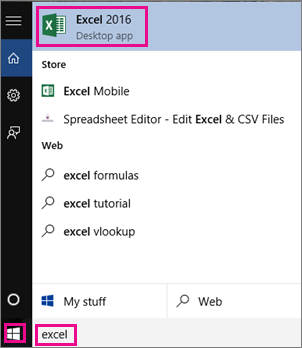
Right-click the Excel icon, and select ‘Run as administrator’.

Now simply follow the activation steps.
But if the activation wizard doesn’t appear then. Try the given process:
Go to File > Account > Activate Product to continue.
But if in case you are not able to fix the office activation error code 0x80070005, then make use of the professional recommended solution to fix the error.
You May Also Read:
- 5 Working Solutions to Fix Windows Store Error Code 0x80131505
- 5 Tricks to Fix File System Error 1073741515 in Windows 10 & 7
Solution 2: Update Registry Entries
If the 0x80070005 activation error started after upgrading Windows, then fix the issue by updating the registry.
Follow the steps to do so:
- Close all Office apps > right click Windows button in the lower-hand corner of your screen > click Run
- In the Open box > type regedit > choose OK.
- Then click Yes as prompted to allow Registry Editor to make changes to your device.
- And in the Registry Editor > expand HKEY_USERS> choose S-1-5-20.
- Right-click S-1-5-20> select Permissions.
- Select Add > and type the logged in user’s name > select Check Names > chooseOK.
- Select Advanced > on the Permissions tab in Advanced Security Settings > select the user you just added > then choose Edit.
- Now under Basic permissions > select Full Control > select OK.
- This will take back to Advanced Security Settings.
- And in Advanced Security Settings > select NETWORK SERVICE > select Edit.
- Now under Basic permissions > select Full Control(if not already selected), > select OK.
- This will take you back to Advanced Security Settings.
- And in Advanced Security Settings > select the checkbox named Replace all child object permission entries with inheritable permission entries form this object > choose OK.
- Now close Registry Editor > restart any Office app to try activating again.
However, if you are not technically savvy then avoid manipulating registry entries manually as this is risky a small mistake can cause lots of damages. so, in this case, make use of the Registry Repair Tool to fix registry related issues automatically.
But if after following the manual fixes you are unable to solve the error then, in this case, scan your system with the automatic Windows Repair Tool.
Check Your Windows PC/Laptop Health:
Download and run the Windows Repair tool, to fix various Windows errors and other related issues. This is the advanced tool that scan, detect and repair various Windows operating system issues. With the help of this, you can fix corruption, damages of the Windows system files, malware/viruses, protect you from file loss, hardware issues and many more. You can also fix various issues like BSOD error, DLL error, Registry issues, drivers issues, games related issues, application error, and many others. This not only fixes the errors but also optimize your Windows PC performance and fix other issues without any hassle.
Conclusion:
Well, there are cases seen when the office has trouble in completing the activation process and as a result, start showing the office activation error 0x80070005 or x80070005.
So, I tried to put together the possible fixes to resolve the error office activation error 0x80070005. Try them one by one and check which one works for you.
Despite this, you can even make use of the automatic solutions to fix the error 0x80070005.
Apart from that always keep your Windows operating system and device drivers updated. And scan your system completely with the good antivirus program at the regular interval of time to maintain the PC performance.
Additionally, if you find the article helpful or have any query, comment, questions or suggestions related, then please feel free to share it with us in the comment section below or you can also go to our Fix Windows Errors Ask Question Page.
Good Luck!!!