Are you the one struggling with the Windows 10 error 0x80248014 while trying to update Windows 10 operating system. Then this article is for you here check out the complete solutions to fix it.
Many users are found reporting about the error 0x80248014, another update error related to Windows 10 faced by the users while trying to upgrade the system by making use of the Windows update features.
The Windows10 update error appears in two cases, in the first case the users are unable to check for updates and in the second the users are unable to complete the purchase in Windows Store.
Well, this is very annoying error and here in this article check out the possible working solutions to fix the error code 0x80248014.
How to Fix Windows 10 Update Error 0x80248014
Well, to fix the error you need to follow the solutions as per your case. So here check out the solutions according to your case and check if the Windows 10 update error 0x80248014 is fixed or not. But first, before moving further try easy tweaks like rebooting your computer, run the SFC scan and Dism scan to fix the error code 0x80248014.
If doing this won’t work for you then go for the below-given fixes according to your cases.
# Case 1: Unable to Check for Updates
Fix 1: Rename SoftwareDistribution folder
Generally, this error occurred because of the corrupted update file, which can be removed by renaming the SoftwareDistribution folder. And this will help you to fix the error code 0x8024814 in Windows 10. Follow the steps to fix the error code 0x80248014, which prevents you from checking for updates. And this helps you to check for updates again.
- First, right-click on the Start Menu button and select Command Prompt (Admin)
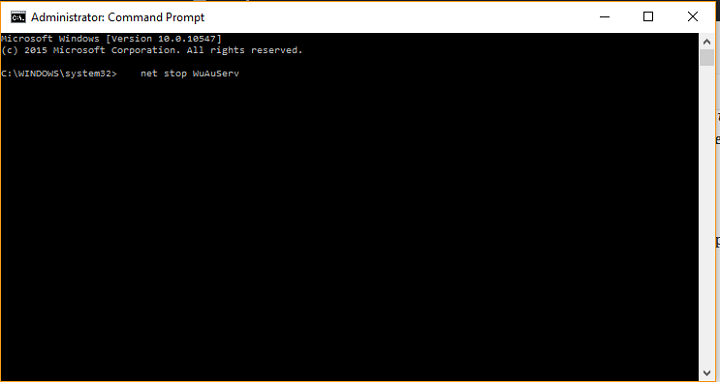
- Enter the following command and press Enter:
- net stop WuAuServ
- Next, paste the given command into Search and press Enter:
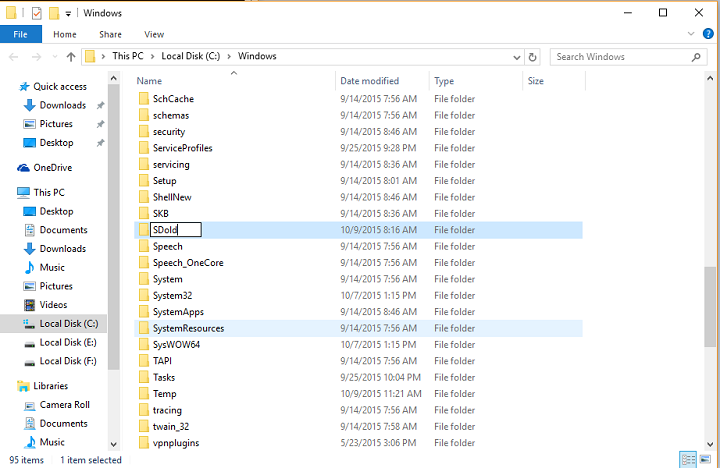
- %windir%
- Then in Windows folder, find SoftwareDistribution folder, and rename it to SDold
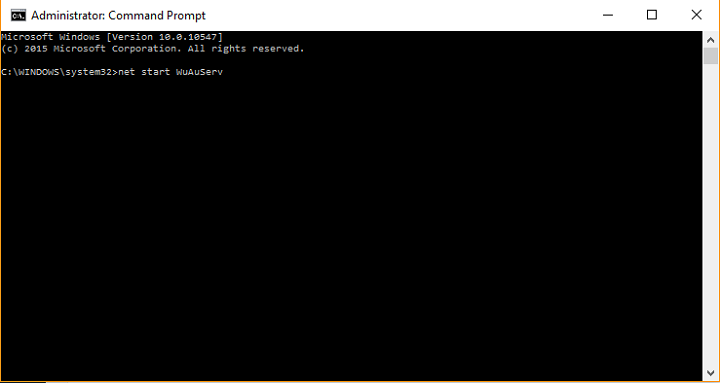
- And open Command Prompt with Admin again, and enter or copy-paste the following command:
- net start WuAuServ
After that try to check for updates again
The error commonly appears due to the corrupted update file and renaming the SoftwareDistribution folder will solve the error code 0x80248014 in Windows 10. But if not then try to run the Windows Update troubleshooter.
Fix 2 – Run the Troubleshooter
Try running the Windows update troubleshooter, this is an inbuilt tool, that helps you to fix the update related issues and errors.
Follow the steps to do so:
- Go to Settings > Updates & Security> Troubleshoot.
- Next, click Windows Update > select Run the troubleshooter.
- Follow the on-screen instructions.
Hope this helps you to fix Windows 10 update error 0x80248014.
Fix 3 – Flush DNS
Well, if none of the above-given solutions works for you then tries to flush the DNS. This worked for many users to fix the error.
Follow the steps to do so:
- Press Windows + X command and open Command Prompt as admin
- As the Command Prompt opens > type the following command:
- ipconfig /release
- ipconfig /flushdns
- ipconfig /renew
- And close the Command Prompt > restart your PC
So, in this way you are able to fix the Windows 10 update error 0x80248014 in the case when unable to check the updates.
Now check the solutions to fix error 0x80248014, when unable to complete the purchase in Windows store.
You may also read:
- 6 Working Solutions to Fix Windows 10 Update Error 0x80071a91
- 5 Methods to Fix Windows 10 Update Error 0x80070422
- FIX: Windows 10 Update Failed with Error Code 0xc1900107
# Case 2: Unable to Complete Purchase in Windows Store
Well, sometimes the same error code appears for a different problem. Some users reported there are unable to download or buy apps from windows store sue to the error 0x80248014. So here check out some of the possible fixes to get rid of the Windows error 0x80248014.
Fix 1- Run the WSReset script
This is the second problem faced by the users with the same error code. In this users are unable to download or buy apps from Windows Store as because of the same error. So to fix this the most effective way is to run a WSReset command, this will reset Windows Store to its optimal defaults, now how to run the WSReset command.
WSReset is a built-in program, which can be used to clear and reset the Windows Store cache. This utility will help you to clear Windows Store and app cache files in the same way as you clear web browser cache (temporary files).
- First, go to search and type wsreset.exe and press Enter.
- The process will automatically get completed, and this will reset the Windows Store to default.
Helpful Article: Top 10 CMD Commands in Windows 10/7/8/8.1 to Fix PC Error
Fix 2 – Run the Windows Update Troubleshooter
Well, this is a universal solution that you can try in both the cases to fix the windows 10 update error 0x80248014. Try running the Windows Update troubleshooter to fix the error.
Follow the steps given above to run the troubleshooter.
Fix 3 – Disable UAC
This is the last solution that helps you to fix Windows10 update error 0x80248014. Here you need to try disabling the User Account Control.
Follow the steps to do so:
- Go to Search > type user account > select User Account Control from the menu.
- And a User Account Control Settings window will appear > and move the slider all the way down to Never notify > click OK to save changes.
Hope this works for you to fix error code 0x80248014 in Windows 10.
Check Your Windows PC/Laptop Health
You can also scan your Windows system with Windows Repair tool, to fix various Windows update errors and other related issues. This is the advanced tool that scan, detect and repair various Windows operating system issues such as corruption, damages of the Windows system files, malware/viruses, protect you from file loss, hardware issues and many more. Apart from fixing the errors this also optimizes the Windows PC performance and speed up the Windows PC without any hassle. It is easy to use even a novice user can use it easily.
Conclusion:
Windows 10 is an advanced operating system but updating the operating system mostly causes errors. The Windows 10 update error 0x80248014 is one of them.
This is a very irritating error as the same error code is faced by the users in different cases.
Well, I tried my best to put together the best working solutions for both the cases.
Try the given fixes one by one and check which one works for you. Apart from that, also scan your system with the automatic Windows repair tool to optimize your PC performance by fixing the common issues automatically.
Also, check the device drivers and update them, install the latest Windows 10 updates, delete the temporary files, scan your system with good antivirus software and remove unwanted software from time to time to maintain the Windows PC performance and other issues.
Additionally, if you find the article helpful or have any query, comment, questions or suggestions related, then please feel free to share it with us in the comment section below or you can also go to our Fix Windows Errors Ask Question Page.
Good Luck!!!

