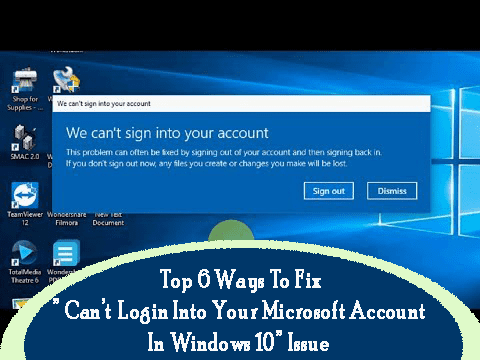
Are you facing issue while signing into Microsoft Account in windows 10? Or does it denies to accept your credential? If you are rendering this problematic situation then read the following post. As it covers the easiest way to fix the issue “cannot log in to your Microsoft account in Windows 10”.
About The Signing Issue Into Microsoft Account In Windows 10

The problem of signing issue encounters along with the release of windows Anniversary Update. All of a sudden, Windows 10 knock out your account and deliver an error message, which simply states the fact that window can’t sign in.
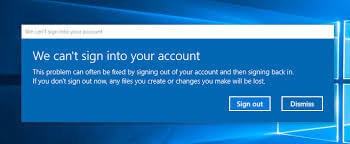
This specific “cannot log in to your Microsoft account in Windows 10” error messages informs about problem that prevents you from signing into your user profile. The error message says that issue can often be fixed by signing out of your account and then signing in once again. But if this method won’t solve the issue, you might need to apply an advanced fix.
How To Fix the Logging Problem with Microsoft Account In Windows 10
Solution 1 – Use necessary recovery steps
The necessary recovery steps are provided by Microsoft and it can be used if you are not able to login to your Microsoft Account as in the case you forgot your password. So in that case follow the instruction given by Microsoft and rest your password.
It may also happen that due to some reason your account is blocked by Microsoft, in that case you can use the basic recovery steps and follow the instruction to unblock the account.
This might help to log into your Microsoft Account in Windows 10 or else follow solution 2.
Also read:
Complete Guide to Fix Windows 10 October 2018 Update Fails to Install
Solution 2 – Modify Group Policy Settings
It might happen sometime that you know the login information but still unable to login to your Microsoft Account, so in that situation you can try some complicated steps to solve the issue. The very first step include is to change Group Policy settings. Follow the given instructions:
- Go to Search and type group policies editor open Edit Group Policies
- Now navigate to the given path:
- Computer Configuration\Policies\Windows Settings\Security Settings\Local Policies/Security Options/Other/Accounts: Block Microsoft Accounts
- Locate Accounts: right-click on Block Microsoft accounts, and go to Properties
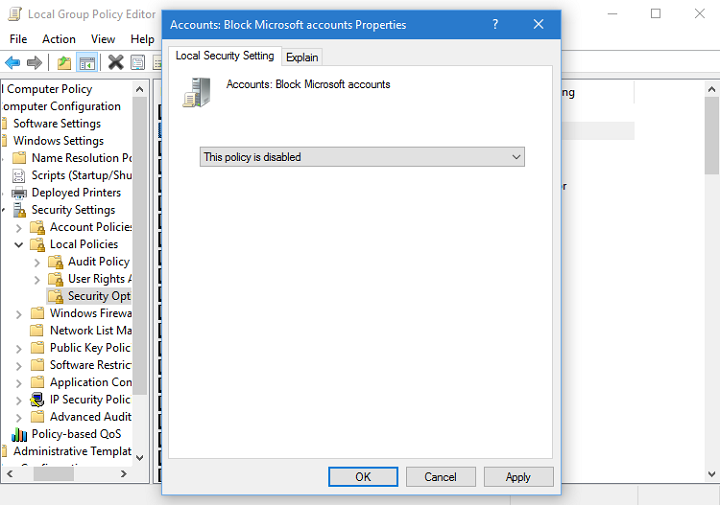
- Next from the drop-down menu select This policy is disabled option.
This solution can be applied if your Microsoft Account was blocked be the group policy, and by making use of this action you can unblock your Microsoft Account and login into your Microsoft Account easily.
Solution 3 – Edit Registry Entries

If your account was not blocked by the group Policy, then you need not to apply the above-given solution so try to edit your registry entries this may help you login into your Microsoft Account. Try to fix registry entries.
Note: Manipulating registry might be very risky and difficult as it adversely affects your system. It damages the whole PC, so try to make use of the automatic Registry Repair tool.
- First go to Search, type regedit, and start Registry Editor
- Now navigate to given path:
- HKEY_USERS\.DEFAULT\Software\Microsoft\IdentityCRL\StoredIdentities
- Here you will find your account right-click on it and delete it
- Close Registry Editor and head to Settings>Accounts
- Attempt to add your account again
Solution 4 – Verify that your Microsoft Account was Hacker or Not
There are ample chances that your Microsoft Account was being hacked, so verify that your account was hacked or not.
You can check it by login into your personal Microsoft account. And verify the “Recent Activity” and if you login was attempted by anyone else then you will get “Was this you? If not let us know” message or else you noticed more than one unauthorized action then you need to secure your account by resetting a strong password or add some extra layer of security measures.
Solution 5: Solve The Problem With Command Prompt
- First option is to boot into Safe Mode, but in the options list, and select Enable Safe Mode with Command Prompt.
- Now follow up the commands one by one. Hit the Enterafter trying each command.
- net user /add useraccountname mypassword
- net localgroup administrators useraccountname /add
- net share concfg*C:\\\\/grant:useraccountname,full
- net user useraccountname
You may also like:
7 Easy Tricks to Fix INTERNAL_POWER_ERROR BSOD Error on Windows 10/8/7
Solution 6: Create A Temporary Profile And Install Windows Updates
Start up your PC and wait for the booting screen to come up.
- Turn on your PC and wait until the Windows booting screen shows up.
- When the booting screen appears, press Restart
- After then select the Troubleshoot and then tap to the Advanced Options.
- Choose for Startup Settings and hit the F4 option to open Safe Mode.
- Wait till your PC takes restarts and boots into Safe Mode.
- Give some time to your computer to get load perfectly and then tap to the Windows key and press R
- Now Type regedit in the box and click Enter to open Registry Editor.
- Now go to the following:
- HKEY_LOCAL_MACHINE\\SOFTWARE\\Microsoft\\Windows NT\\CurrentVersion\\ProfileList.
- Expand ProfileList and here you will get some subfolder named by values starting S-1-5-XX (XX could be any number).
- Now choose the one that has the ProfileImagePath key set to the system profile path.
- Double tap on the RefCount key and change its value to 0 from 1 and tap to the OK
- At last close everything and restart your PC.
Install Windows Updates
- After the full boot of your PC, Navigate to Settings App → Select Updates & Security → Windows Updates.
- Choose the Check for Updates option and wait till the system scans for available options.
- After getting the list with all windows update which are recommended to install, tap Run the Updates.
- When complete installing of the updates are installed make reboot your PC.
Conclusion:
Well, by making use of the given solution you can fix the error without any hassle. Very importantly create a backup of your registry database or create a system image backup to avoid unwanted damages to your system while performing solution 3.