Are you the one struggling with the “Class not Registered Error” in Windows 10, then check out the complete steps to fix the error class not registered Windows 10.
Windows 10 is the most popular operating system but like others, this is not free from errors. Many users are found reporting the Class not registered error Windows 10.
Windows OS system uses C++ classes in programs and if they are not appropriately registered then while running the programs and utilizing those classes’ users’ faces the problem it might happen that the classes are not registered correctly and due to this user faces the “Class not Registered” Error on the front end of OS. It might appear with nay program and user faced the problem with File Explorer, Internet Explorer, and Microsoft Edge etc.
This is a very irritating error, and users reported that Google Chrome is not working on Windows 10. This error can also affect any software. The Google Chrome is not the only software there is much other software as well affected due to the error.
Also Read: Best Way to Fix Windows 10 Chrome Browser Freezing Issues
To simply fix the problem restore Microsoft’s default apps to built-in apps inside Settings. Or else try to create the new user account and check the issue. This will help to solve the issue. But if you are still having this problem, then make use of the given methods:
How to Fix Class Not Registered Error in Windows 10
Solution 1 – Make use of Component Services snap-in
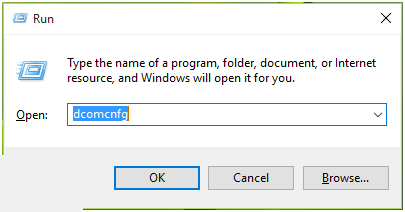
- Press Windows key+ R together and then type dcomcnfg in the Run dialog box after that hit Enter key to open Component Services snap-in.
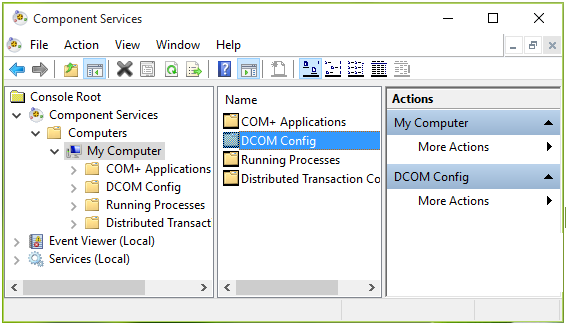
- Then in the Component Services Windows, move to Component Services > Computer > My Computer. And in the middle of the window, double-click on DCOM Config.
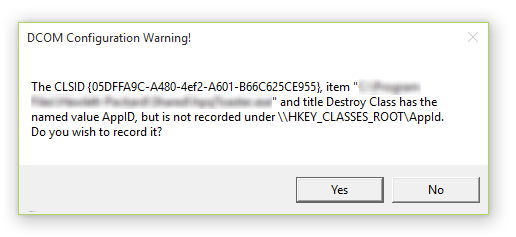
- Then in DCOM Configuration warning message click on the YES button of the message, as this message may be the main reason of “Class not Registered” error. And by clicking YES, the user gets another message that contributes to the error for the component or CLSID. Register or say Record all of these messages with Yes option.
When all the procedure is finished then close the Component Services Window and reboot the PC, this will solve the problem.
You May Also Read:
- Top 5 Solutions to Fix “BOOTMGR is Missing” on Windows 10, 8, 8.1 & 7
- 4 Easy Tweaks to Fix iTunes Error 3194 on Windows 10
- SOLVED: WinX Menu not Working in Windows 10
Solution 2 – If getting Class not registered error with Microsoft Edge/Internet Explorer:
If you are facing problem while running Internet Explorer/ Microsoft Edge then follow the steps. It might happen you are getting this error due to the service is not running, so in these steps know how to start the service and fix the error.
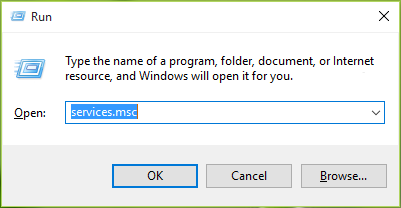
- Press Windows key + R and in the Run dialog box type services.msc, press Enter key to open Services snap-in.
- Now in the Services window, go down and locate the Internet Explorer ETW Collector Service. And right-click on the service and select Start.
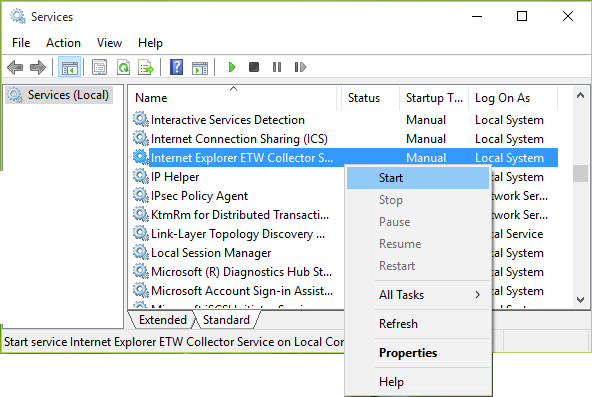
And as the service is started then there are chances that the issue is no longer appear. But if you get the error again then try re-register the built-in apps in Windows 10 this will definitely help you to fix the problem.
Solution 3 – Re-register ExplorerFrame.dll file
If while using Internet Explorer it keeps crashing and showing you the Class not registered error. Then you need to try the methods.
Follow the steps to do so:
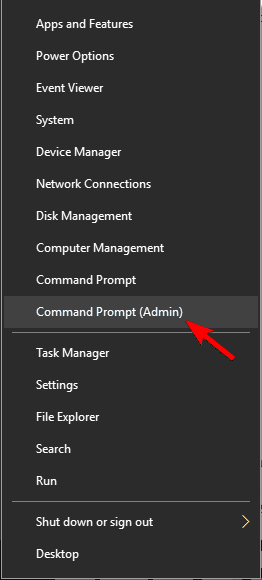
- First, open Command Prompt as administrator > press Windows key + X> and from the menu select Command Prompt (Admin)
- As Command Prompt opens, paste the following code and press Enter to run it:
regsvr32 ExplorerFrame.dll
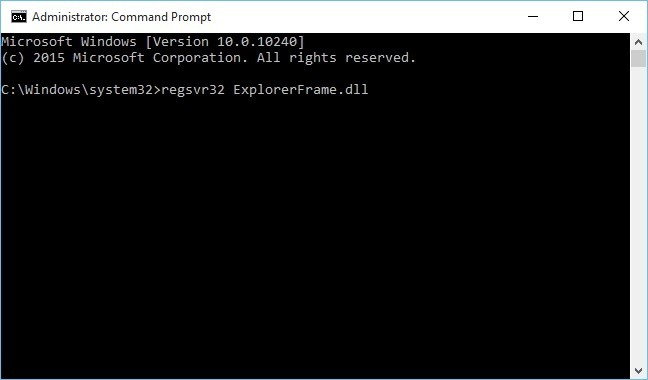
Hope doing this works for you to fix class not registered Windows 10 error.
Solution 4: Disable iCloud
Many users reported this issue is caused by iCloud, so to fix it close iCloud with Task Manager.
To do so, follow the steps:
- To start Task Manager > press Ctrl + Shift + Esc
- As the Task Managerstarts> locate iCloud > and right click it
- Now select End Task.
Well, you can also disable iCloud from starting up by using Task Manager.
- To do so open Task Manager > go to Startup tab
Solution 5 – Create a new Microsoft Account
Well, if none of the fixes works for you then create a new Microsoft account on Windows 10.
Follow the steps to do so:
- Press Windows key + I then go to Settings app
- As the Settings appopens > move to Accounts
- Then in the right pane, select Family & other people from menu on left. And in right pane > click on Add someone else on this PC
- Now type your Microsoft account email > click Next
- And log out from the current account > switch to a new one.
It might happen this solution won’t work till you sign in with the local account instead. To switch to local account, follow the steps:
- Open Settings > Accounts > click Sign in with a local account instead > then enter your password.
- After this enter username and password for local account
- And click Sign out and finishbutton and log back to your account.
After switching to the local account repeat steps from beginning of the solution.
Check Windows PC/Laptop Health
You can also make use of the Windows Repair Tool to fix Windows errors. It is designed with advanced algorithm to automatically detect and repair the error by scanning once. It can repair all types of Windows error, PC error, Registry error, Games error, DLL error, Application error and many more. It can also be used to enhance the performance of the PC and runs the app smoothly in Windows OS.
Conclusion:
Hope the given steps works for you to fix class not registered in Windows 10. So try the given solutions one by one to fix class not registered in Windows 10.
Also, check the device drivers and update them, delete the temp files, scan your system with good antivirus software and remove unwanted software from time to time to maintain the Windows PC performance and other issues.
Additionally, if you find the article helpful or have any query, comment, questions or suggestions related, then please feel free to share it with us in the comment section below or you can also go to our Fix Windows Errors Ask Question Page.
Good Luck!!!